



Transforming your home into a Smart Home is easier than you think. Whether you’ve chosen Haier, Candy, or Hoover, it only takes a few minutes to unlock a world of extra features.
Follow these simple steps and get ready for a whole new home experience!
1. Enter the hOn World
The first step is creating your digital space:
- Download the App: Search for “hOn” on the App Store or Google Play.
- Create Your Profile: For maximum speed, we recommend using the direct login with Google, Apple, or Facebook.
2. Prepare Your Connection
Before you start, make sure everything is ready for a smooth setup:
- Check the Signal: Ensure your Wi-Fi reaches the spot where the appliance is located.
- Network Frequency: Make sure your router is set to the 2.4 GHz band (the standard for smart devices).
Note: Modern routers are usually dual-band. If you’re unsure how to check this, your internet provider will be happy to help.
- Password at Hand: Have your home Wi-Fi password ready.
Quick Tip: Avoid empty spaces or “%” characters. For your security, public networks are not supported.
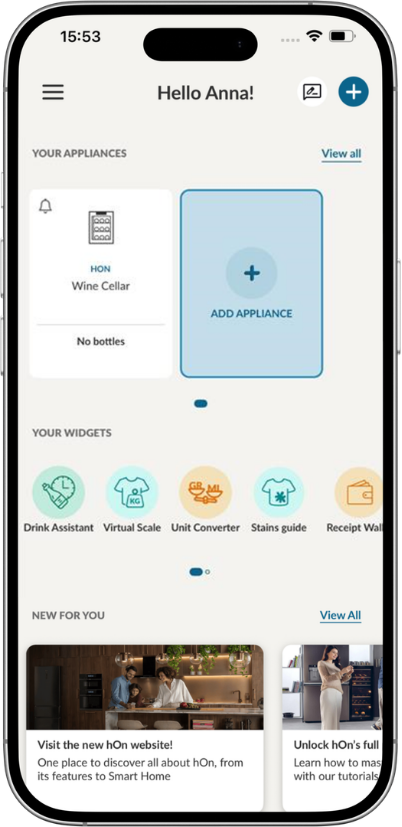
3. Connect Your Device to the App
Now for the exciting part! Stand near your appliance and open the app:
- Add Product: Tap the “+” icon in the top right corner and select your appliance from the list.
- Follow the Steps: The app will guide you through a dedicated procedure tailored to your specific model.
- Permissions: You will be asked to enable Geolocation (to locate your Wi-Fi network), the Camera (to scan the QR code or barcode, though you can enter the serial number manually), and Bluetooth® to pair the app with your product.
- Purchase Date: Once finished, you can enter the date of purchase to easily manage your warranty.
- Software Update: Before you dive in, wait a moment for the app to download the latest software to ensure peak performance.
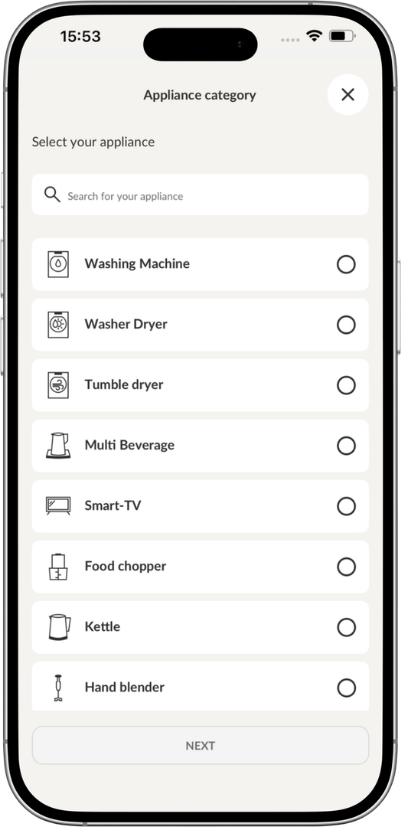
*Note! Some appliances require different steps to connect to the hOn app:
🛠️ Something Not Working? No Problem!
If the configuration doesn’t go through the first time, try these quick fixes:
- Restart the App: Sometimes simply closing and reopening the app is all it takes to see your device.
- Start Over: Often, the second time is a charm! If needed, try unplugging the appliance for a few minutes before trying again.
- Check Previous Profiles:
- If the appliance was previously linked to another profile, try to recover those login details.
- If the old profile is no longer in use, ensure the device has been removed from it before connecting it to the new one.
🆘 We Are Here for You
Still have questions? Our support is just a click away:
- WhatsApp: Message us directly through the in-app channel.
- Email: Send us a message via the support module inside the app.
Haven’t connected your appliances yet?
